

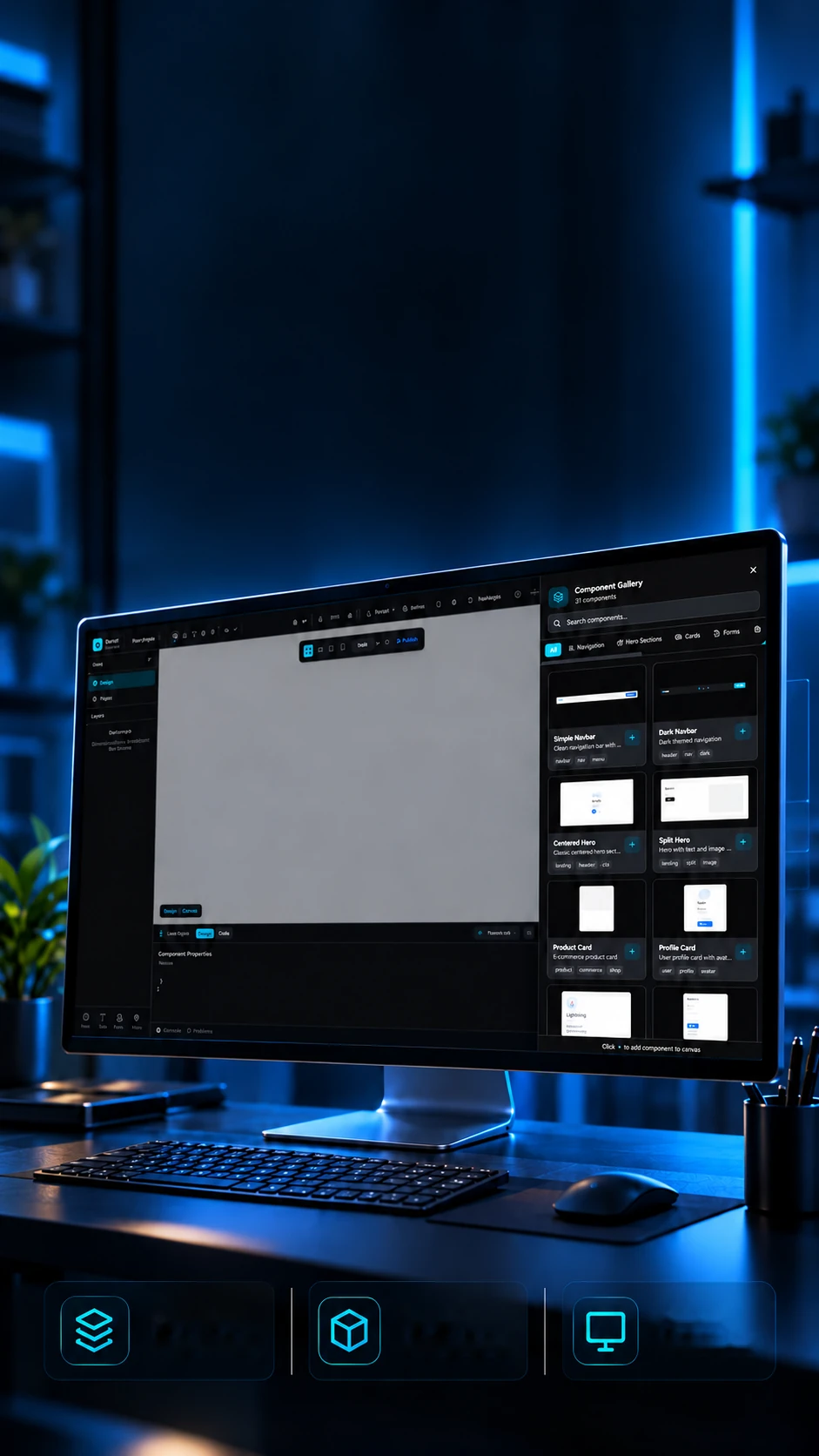
 Personal project • Visual editorFrom visual to code.Layers and
propertiesThemes and
componentsResponsive
preview

Design and code,in the same flow.
Canvas, components and prototyping to build interfaces.
A visual editor that runs in the browser: the screen is built by dragging blocks and leaves as code in 5 formats and 6 libraries.Build screens by dragging blocks and leave with the code ready.
- Next.js 14.2
- React 18.3
- TypeScript 5.9
- Tailwind CSS 3.4
- Zustand 4.5
- Babel Parser 7.28
- JSZip 3.10
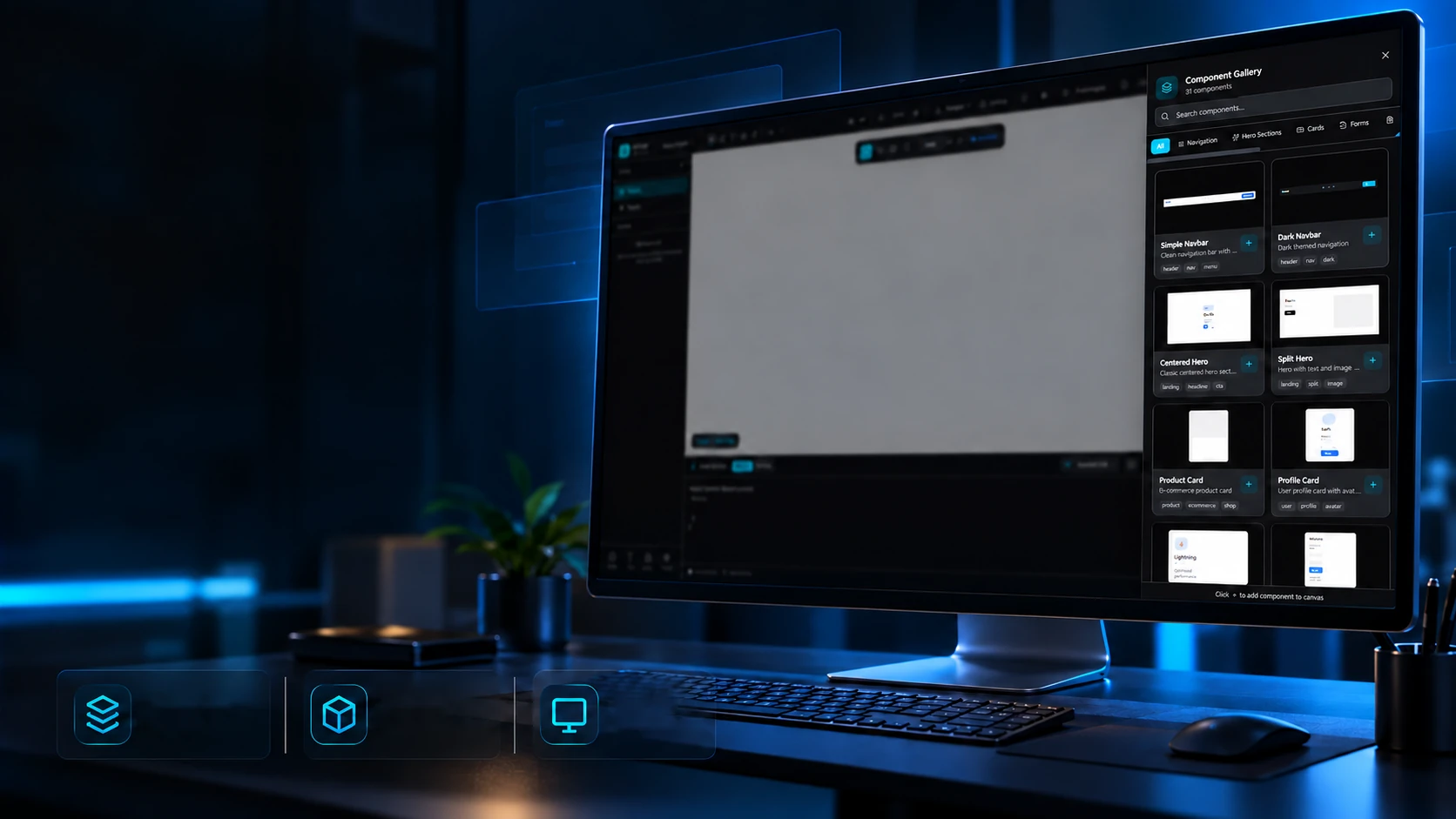 Personal project • Visual editorFrom visual to code.Layers and
propertiesThemes and
componentsResponsive
preview
Design and code,in the same flow.
Canvas, components and prototyping to build interfaces.
- Next.js 14.2
- React 18.3
- TypeScript 5.9
- Tailwind CSS 3.4
- Zustand 4.5
- Babel Parser 7.28
- JSZip 3.10
A visual editor that runs in the browser: the screen is built by dragging blocks and leaves as code in 5 formats and 6 libraries.Build screens by dragging blocks and leave with the code ready.
- Next.js 14.2
- React 18.3
- TypeScript 5.9
- Tailwind CSS 3.4
- Zustand 4.5
- Babel Parser 7.28
- JSZip 3.10
The editor
Drag, drop and adjust.
Building a screen usually means going back and forth between a design tool and the code. In UIForge a screen comes together like in an image editor: each block goes into place with the mouse and everything snaps to a grid. This one works, play with it.
Layers
Drag a block to move it; the size changes with the − and + buttons in the properties. On the keyboard, the arrow keys move it too.
Properties
Button
- Type
- Button
- X
- 48
- Y
- 248
- W
- 136
- H
- 40
Everything snaps every 8 points; near the centre, the block sticks to the guide.
The code
From design to code, instantly.
A finished design still has to become code, and every team does it its own way. UIForge writes the same screen in 5 formats and 6 component libraries. Switch below: the code is written again, right in front of you.
5 formats
6 libraries
Mountain Trail
Three days of hiking, with a guide and lodge included.
Book nowCard.tsxexport function Card() { return ( <div className="flex flex-col gap-3 rounded-xl bg-white p-6 shadow-lg"> <div className="h-10 w-10 rounded-xl bg-gradient-to-br from-cyan-400 to-blue-500" /> <h3 className="text-xl font-extrabold text-slate-900">Mountain Trail</h3> <p className="text-sm text-slate-600">Three days of hiking, with a guide and lodge included.</p> <button className="self-start rounded-lg bg-blue-500 px-4 py-2 font-bold text-white"> Book now </button> </div> );}An example of the kind of code the editor writes, with clear names and the right tags (heading, text, button) instead of nameless boxes.
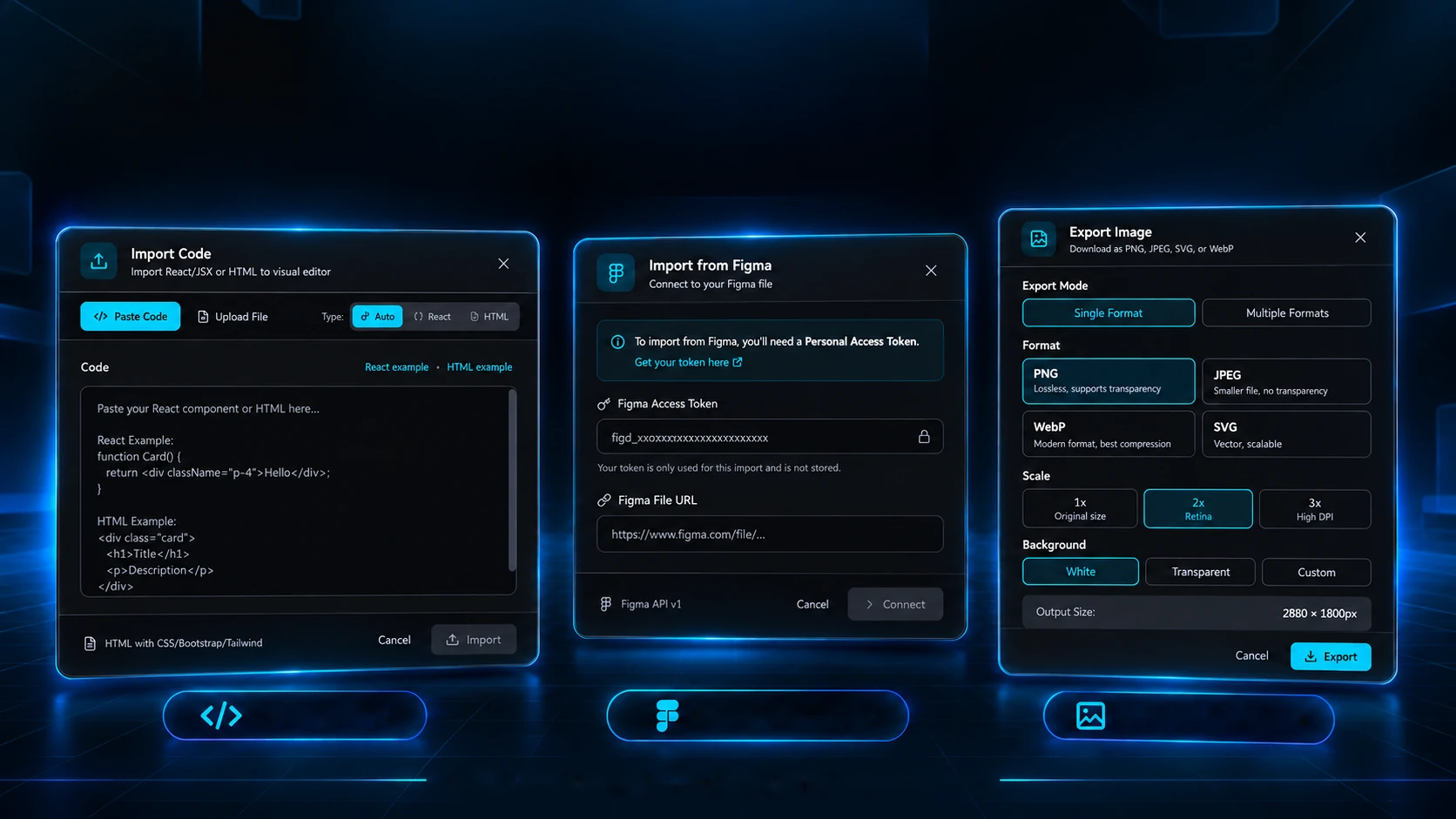
Import. Create. Export.
React, HTML and Figma as the starting point for your interfaces.
React and HTMLFigma importImage exportVisual editing and code generation in one place.Almost nobody starts a screen from scratch: there's already a component, a finished page or a Figma file. UIForge reads what already exists, builds the block tree and puts it all on the canvas, ready to edit. Pick a door and tap or hover over the tree's nodes.
1The sourceCard.tsx
function Card() { return ( <div className="card p-6"> <h3 className="text-xl">Mountain Trail</h3> <p className="text-sm">Three days of hiking, …</p> <button className="btn">Book now</button> </div> );}2The tree
3On the canvas
The image
Take the screen as an image.
Sometimes all you need is a picture of the screen, to show a client, drop into a presentation or an app store. UIForge's export window does the maths for you. Choose and watch the final size change; the magnifier shows the edge of a circle up close.
The exported frame: 1,440 × 900
Responsive
One screen, four widths.
A site is seen on a big monitor, a laptop, a tablet and a phone. UIForge shows the same screen at all four widths, so you can see where the menu turns into a button and the columns stack. Scroll down, or pick a width.
Width: 1440 px · shown at 60%
The colours
Change the palette, the whole screen follows.
Changing a site's colours by hand means hunting the same shade in a hundred places. In UIForge the colours live in a palette: swap the palette and every button, background and text follows. There are 10 ready-made; click one and watch the paint drop.
10 palettes
variables.css:root { --color-primary: #3b82f6; --color-secondary: #6366f1; --color-accent: #8b5cf6; --color-background: #ffffff; --color-surface: #f4f4f5; --color-text: #18181b; --color-text-muted: #71717a; --color-border: #e4e4e7; --color-success: #10b981; --color-warning: #f59e0b; --color-error: #ef4444;}The technologies
What it is made of, piece by piece
A visual editor that runs entirely in the browser, with no server and no database: the design lives in the page's memory and leaves as code or an image. Pick a piece to see what it does here and which file it is in.
12technologies, in 4 layers
Screen
State
Reading
Output
The screens
Layer by layer.
The editor from the inside, as it is: dark, with the white canvas in the middle. Each screen is a layer in the list, hover to bring it to the front and click to see it large.
Layers 13
EditorThe editor, with layers and properties
Next project37 / 51
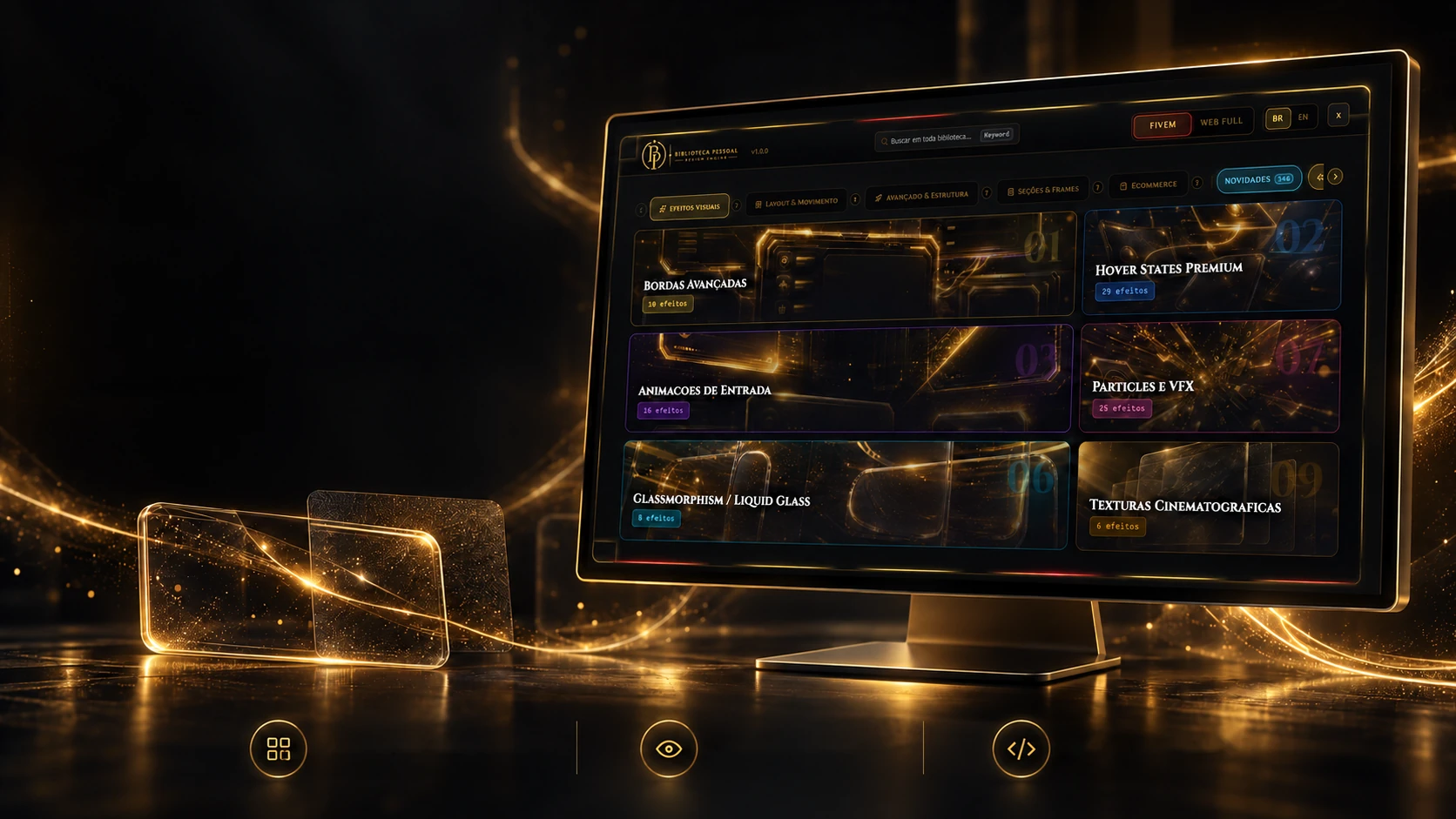
 Creative and developer toolsBiblioteca Pessoal de DesignA personal library of 346 interface effects and components in 18 categories, each one live and with code ready for the web and for FiveMNext.js 16.1 (estático)React 19.2TypeScript 5.7Tailwind CSS 4.2
 ← PreviousVisualizador de Site Responsivo