
 Personal project · Web toolProjects and clientsPorts and linksSharing
Your local project.Ready to present.
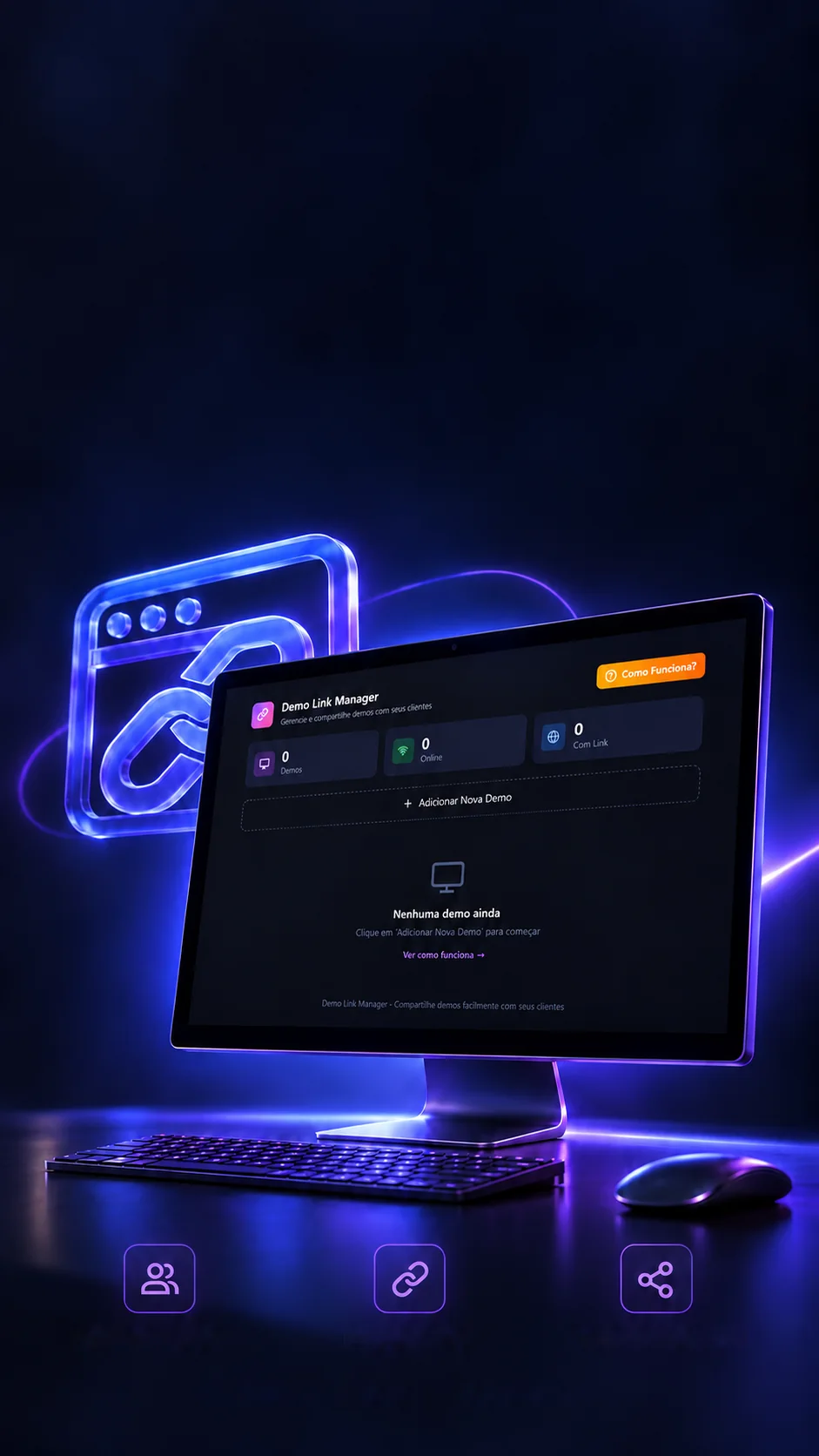
A panel to organize demos and share links with clients.
Local demos, with the right link for each client.
- Next.js 14
- React 18
- TypeScript
- Tailwind CSS
 Personal project · Web toolProjects and clientsPorts and linksSharing
Your local project.Ready to present.
A panel to organize demos and share links with clients.
- Next.js 14
- React 18
- TypeScript
Local demos, with the right link for each client.
- Next.js 14
- React 18
- TypeScript
- Tailwind CSS


The idea
The project lives on your computer. The client doesn't.
While a site is being built, it only exists on the developer's computer, at an address nobody outside can open (localhost). For the client to see it before launch, a tunnel program opens a temporary door and creates a public link. Open and close the door to see what happens.
http://localhost:3000https://minha-demo.loca.ltLink working- 1The project runs on the computer
Each project sits on a port (3000, 5173…), at an address only that computer can see.
- 2The tunnel creates the link
A program like ngrok connects that port to the internet and hands back a link anyone can open.
- 3The panel keeps it all
Project, client, port and link stay together, ready to send at the right moment.
An illustration of the idea. The tunnel is opened in a terminal, outside the panel; the panel organizes the rest.
The panel
Every demo in its place, with client and link.
Whoever shows several projects at once loses track of which link belongs to which client. The panel keeps each demo with the client, the port and the public link, counts how many are live and builds the tunnel command. Register a demo and open the card.
- Sample Bakery websiteSample Client · localhost:3000Command to open the tunnel (copy into the terminal):
ngrok http 3000 - Sample StoreAnother Client · localhost:5173
Sample demos, kept only in this browser, as in the app. Here the check is simulated; in the app, it tries to open the local address for up to 3 seconds.
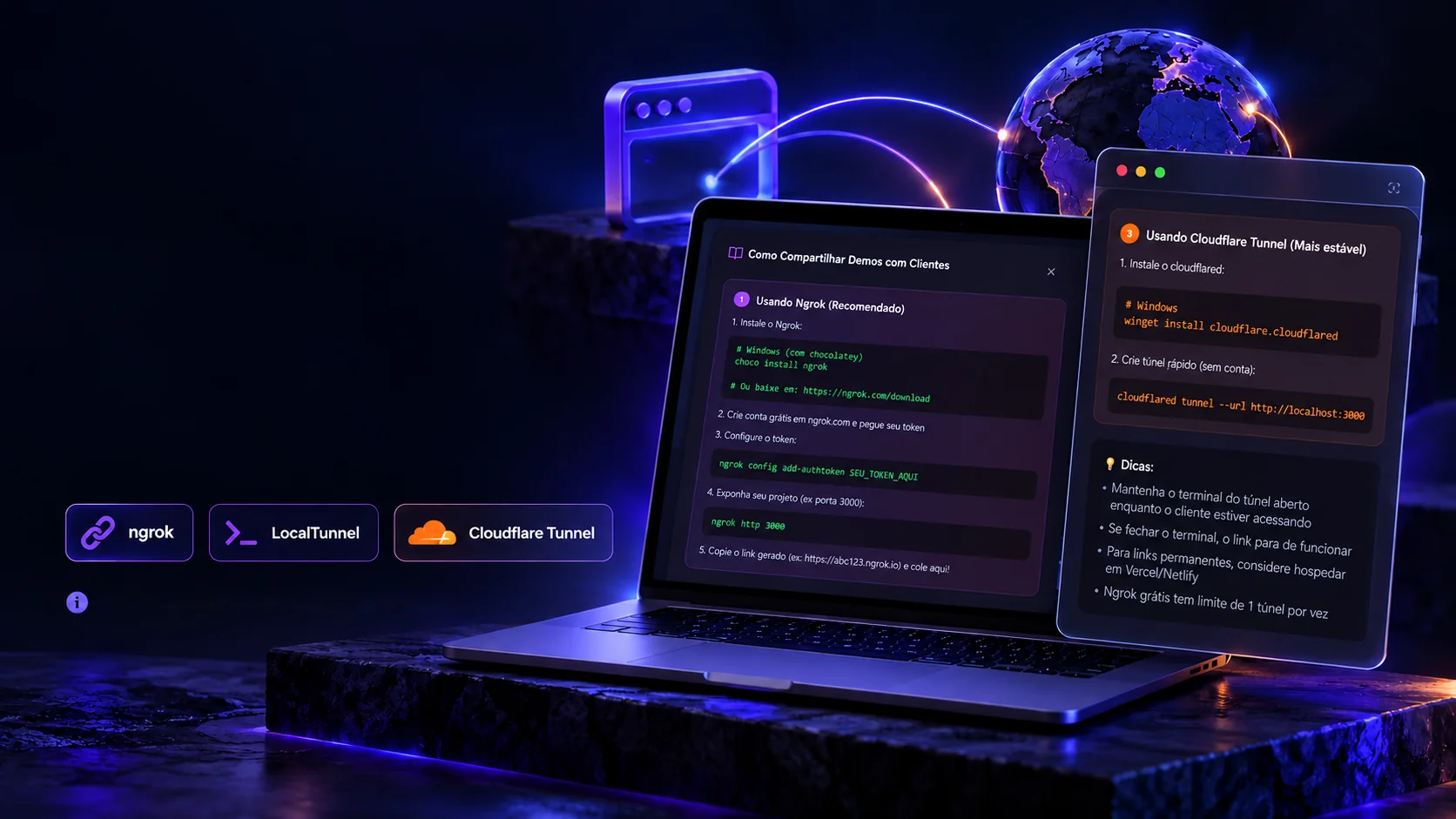
From local setup to the demo.
Built-in guides to set up tunnels and organize the links they create.
Tunnel setup happens outside the panel.Opening a tunnel for the first time scares anyone who's never used a terminal. The app brings a guide for each service, with the commands ready. Pick a tunnel and the project's port: the commands already include it.
- 1
Install ngrok (or download it from the ngrok site).
choco install ngrok - 2
Create a free account on the ngrok site and get your token.
- 3
Set up the token:
ngrok config add-authtoken SEU_TOKEN_AQUI - 4
Open the project's port:
ngrok http 3000 - 5
Copy the link it creates (e.g. https://abc123.ngrok.io) and paste it into the panel.
- Keep the tunnel's terminal open while the client is visiting.
- If you close the terminal, the link stops working.
- For permanent links, it's worth hosting the site for real.
- The free ngrok plan allows 1 tunnel at a time.
Guides and tips taken from the app. The service names belong to the companies that run them.
The message
The link is ready, and so is the message.
Dropping a bare link into a chat looks careless. The app builds the message with the client's name, the project, the description and the link, for WhatsApp or email. Edit the fields and watch the letter change; the buttons open your WhatsApp or your email with the text already written.
Hi Sample Client! 🎉 Your Sample Bakery website demo is ready! 🔗 Open it here: https://sample-bakery.loca.lt 📝 Version with the new menu Any questions, just ask! 😊
The text templates are the app's (translated here). Nothing is sent by itself: WhatsApp or email opens with the message for you to check.
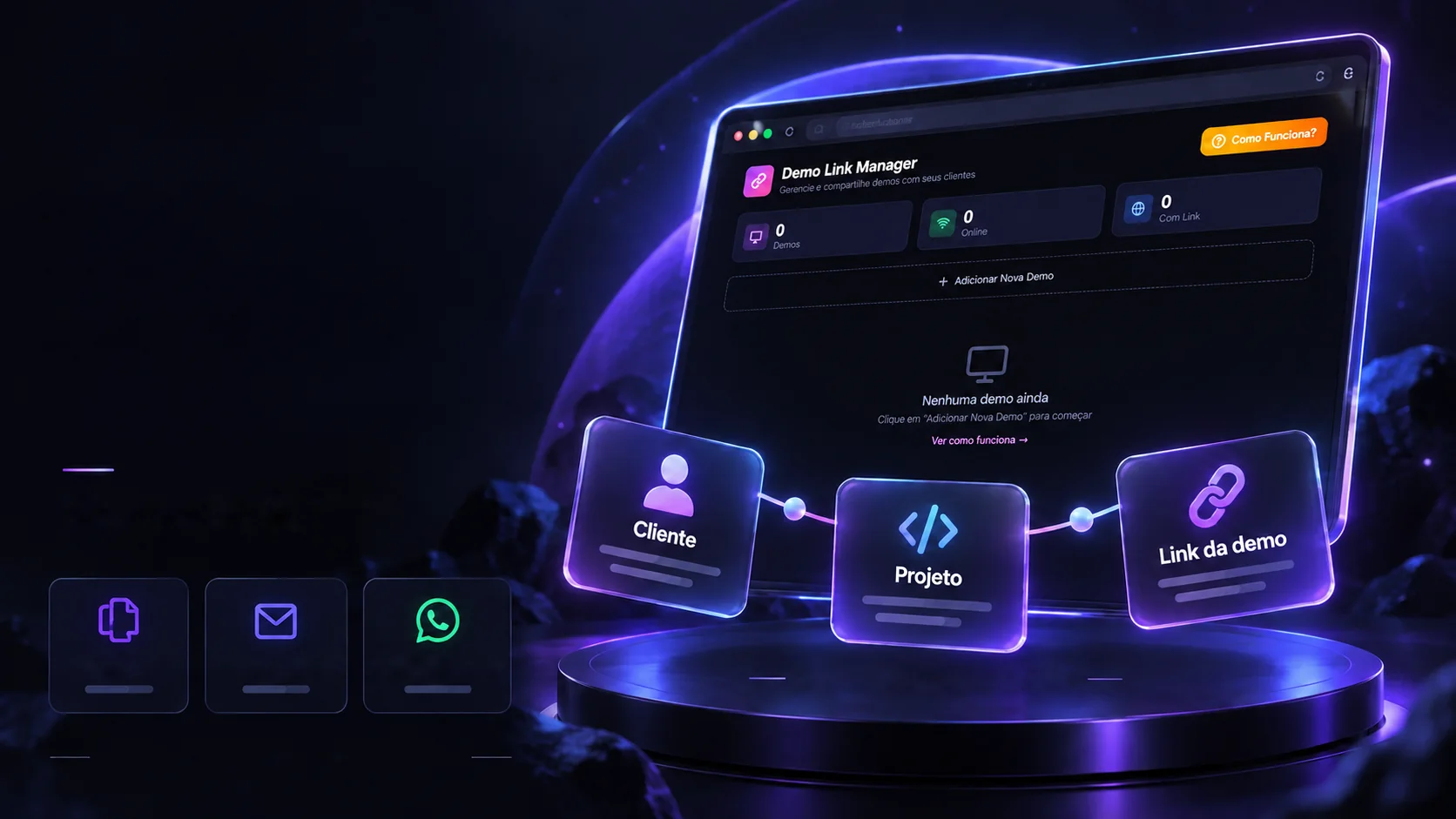
Fewer loose links. More clarity when presenting.
Client, project and address together to make every demo easier.
An in-house tool to improvethe presentation workflow.Copy linkReady messageWhatsApp and emailInterface · Local storage · SharingConceptual depiction of the flow
Before, every link lived somewhere else: a chat, a note, the browser history. The panel ties the threads together. And it's a small tool, made for a single job, so it's worth saying what it doesn't do as well.
What the panel does
- Keeps each demo with its client
Project name, description, client, port and public link, on a single card.
- Counts what's live
How many demos there are, how many answered online and how many already have a link.
- Builds the command and the message
The tunnel command with the right port and the text ready for WhatsApp and email.
- Shows the way
Guides for ngrok, LocalTunnel and Cloudflare Tunnel inside the panel itself.
What stays outside it
- It doesn't open the tunnel
The tunnel runs in a terminal; the panel only keeps the link it creates.
- It doesn't check the public link
The status check looks at the local address, not the client's link.
- It doesn't count visits
There's a field for it in the code, but it's never filled in.
- It doesn't leave this computer
Demos stay in the user's browser; there's no account or cloud.
List checked against the app's code (app/page.tsx).
The technologies
What it is made of, piece by piece
A panel that runs in the developer's browser, on its own port (4500). There's no server or database: what you register is kept in the browser itself. Pick a piece to see what it does here and which file it is in.
9technologies, in 3 layers
Screen
Motion
Features
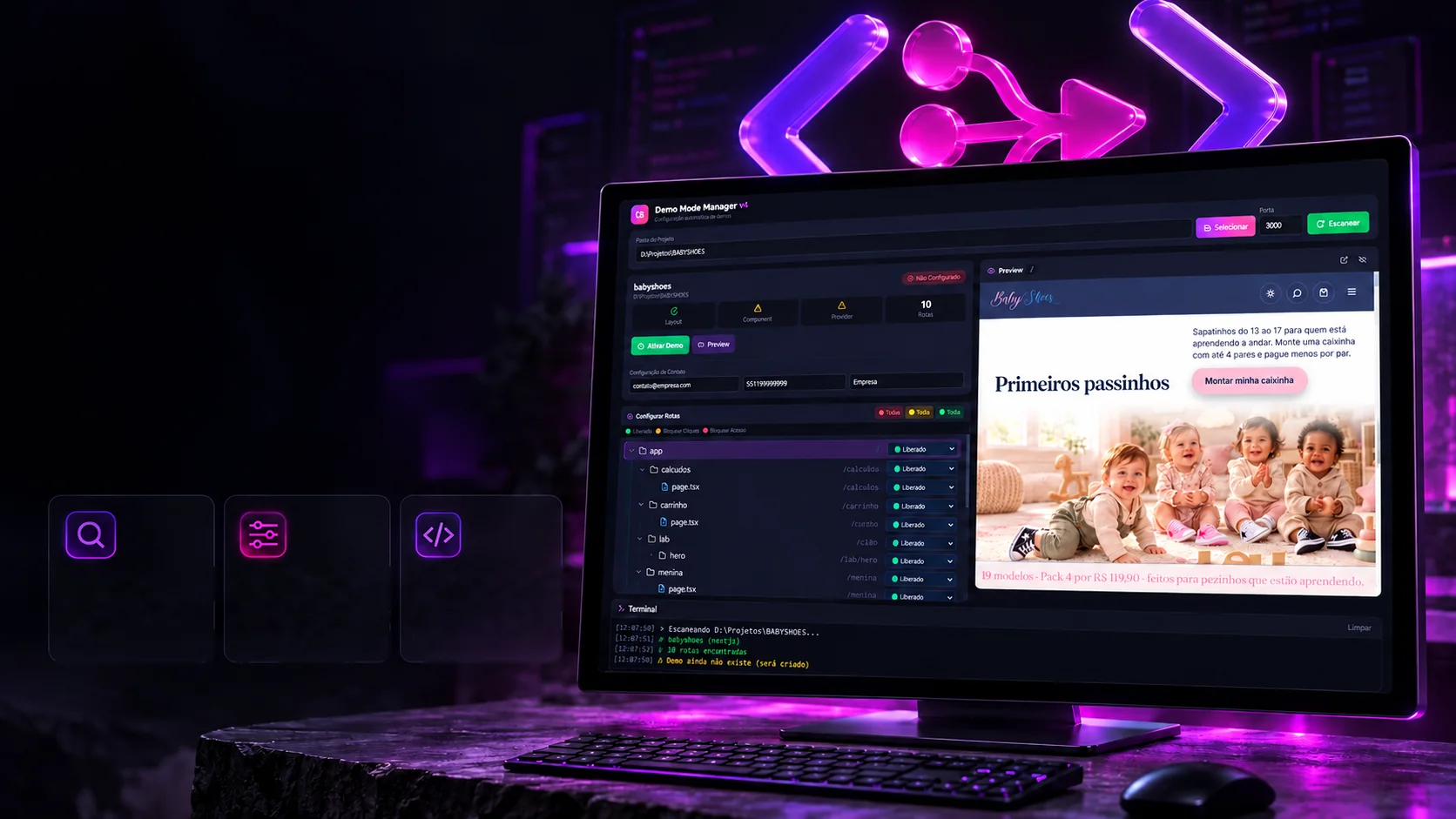
The screens
The panel as it is.
The real screens, in the dark theme with purple and pink. Pick one and click the image to see it full size.
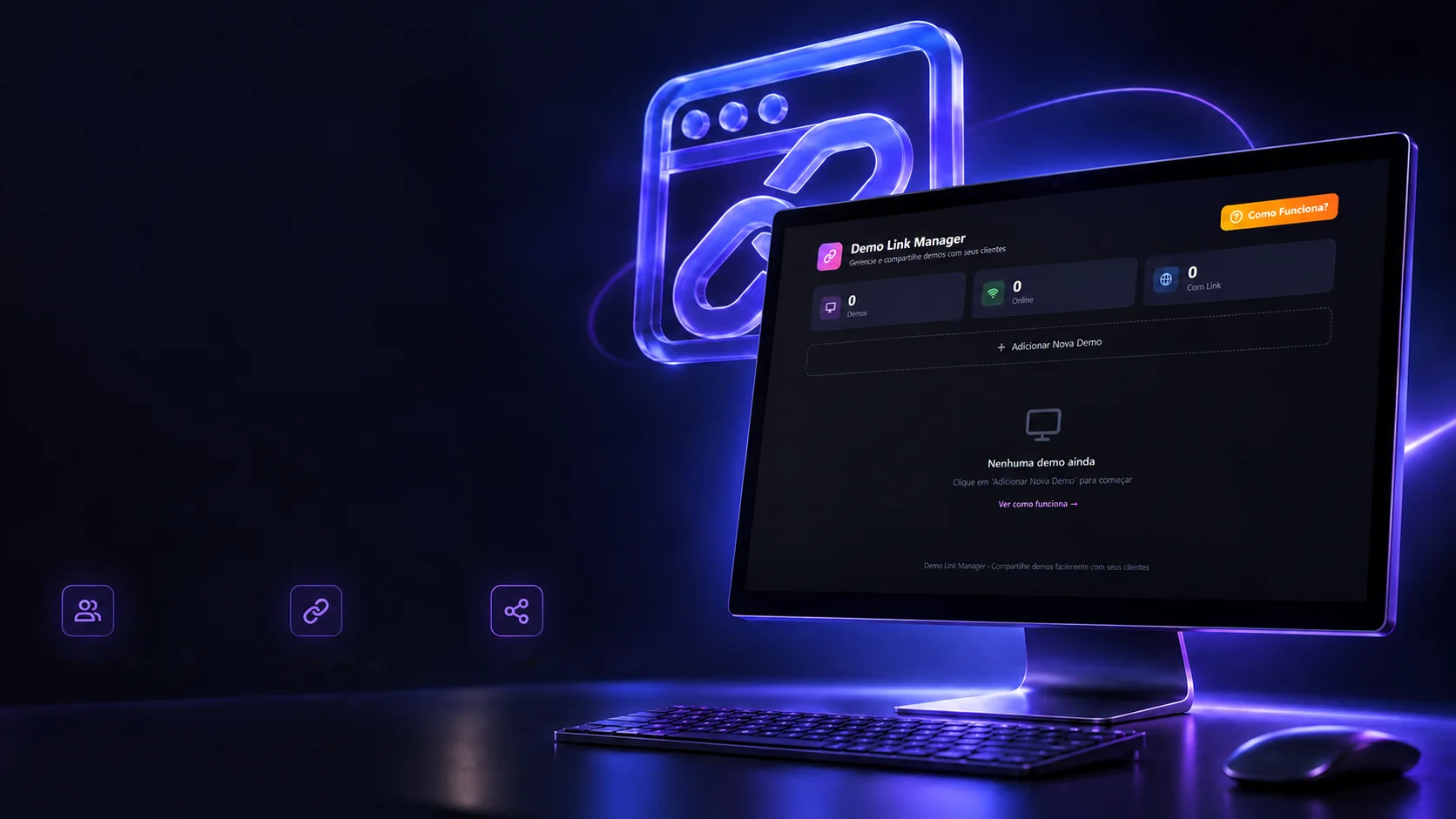
The panel: the numbers, the new-demo button and the list, still empty.
Real app screens.
 Creative and developer toolsDemo Mode Manager