
 Personal project · Windows desktop
Your projects.Always at hand.
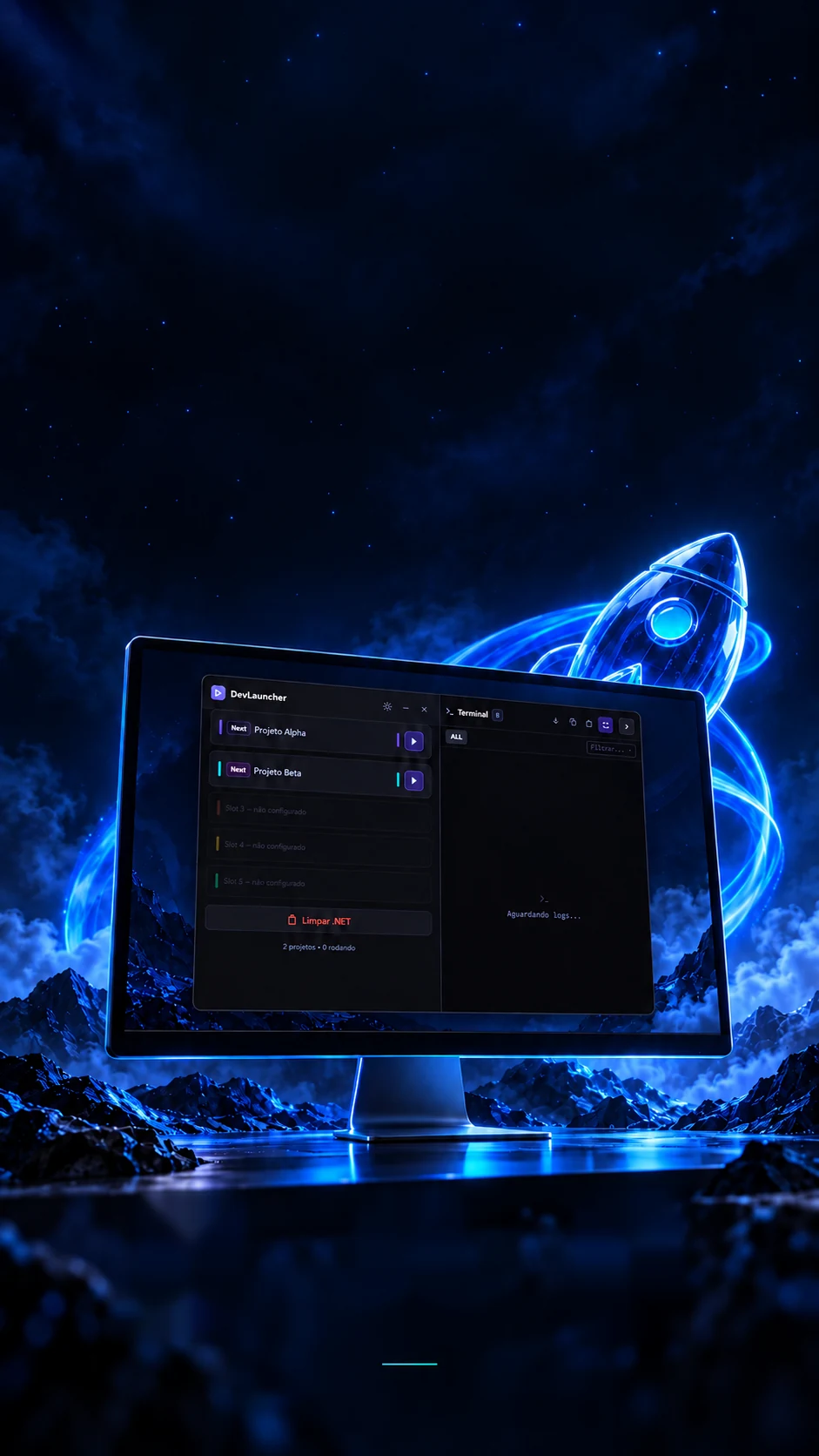
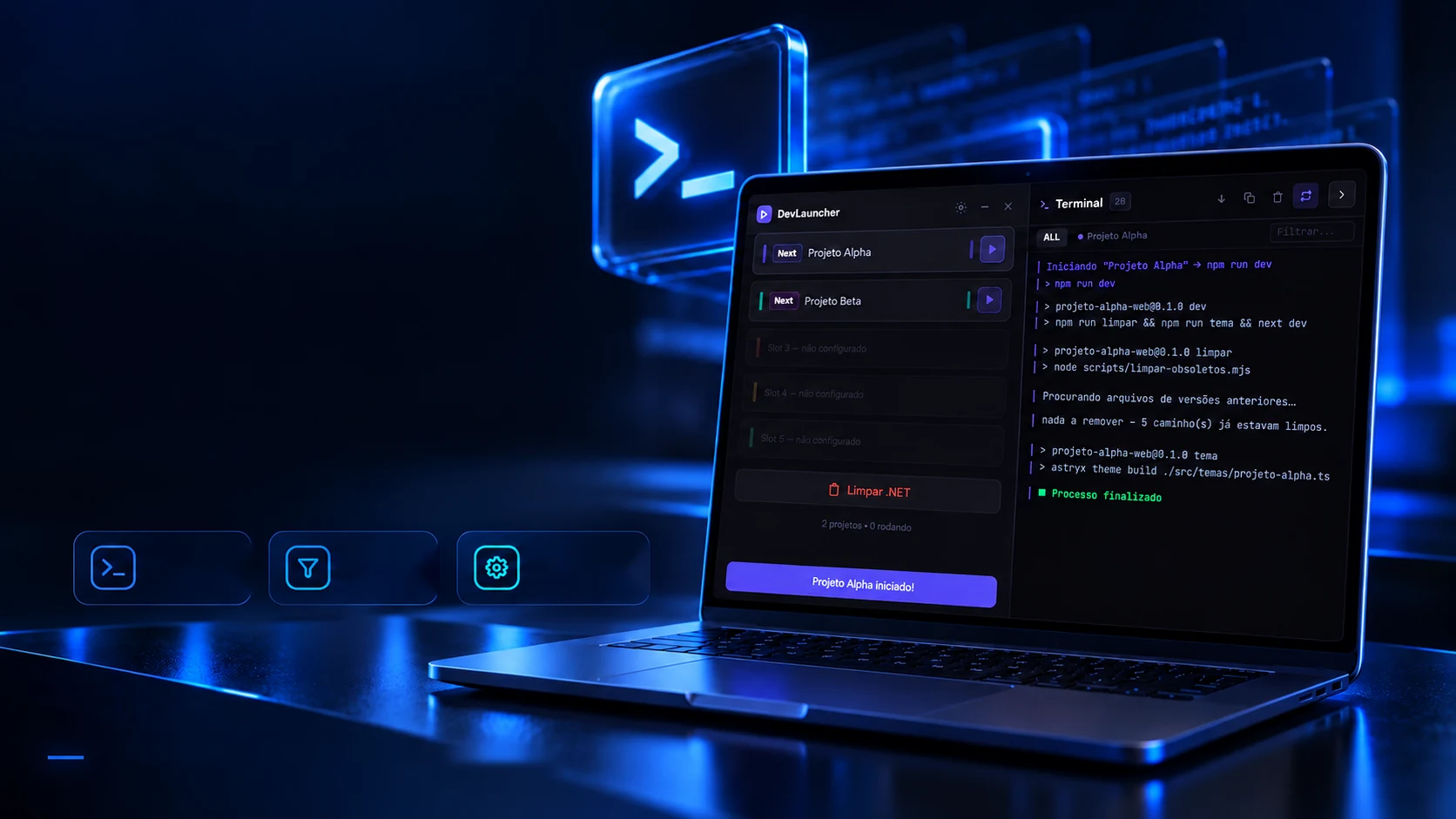
A floating panel to start local projects and follow the terminal.
A panel that gets local projects running, with the terminal beside it.
- Tauri 2
- Rust
- React 18
- TypeScript
 Personal project · Windows desktopUp to 5
projectsA command per
projectBuilt-in
terminal
Your projects.Always at hand.
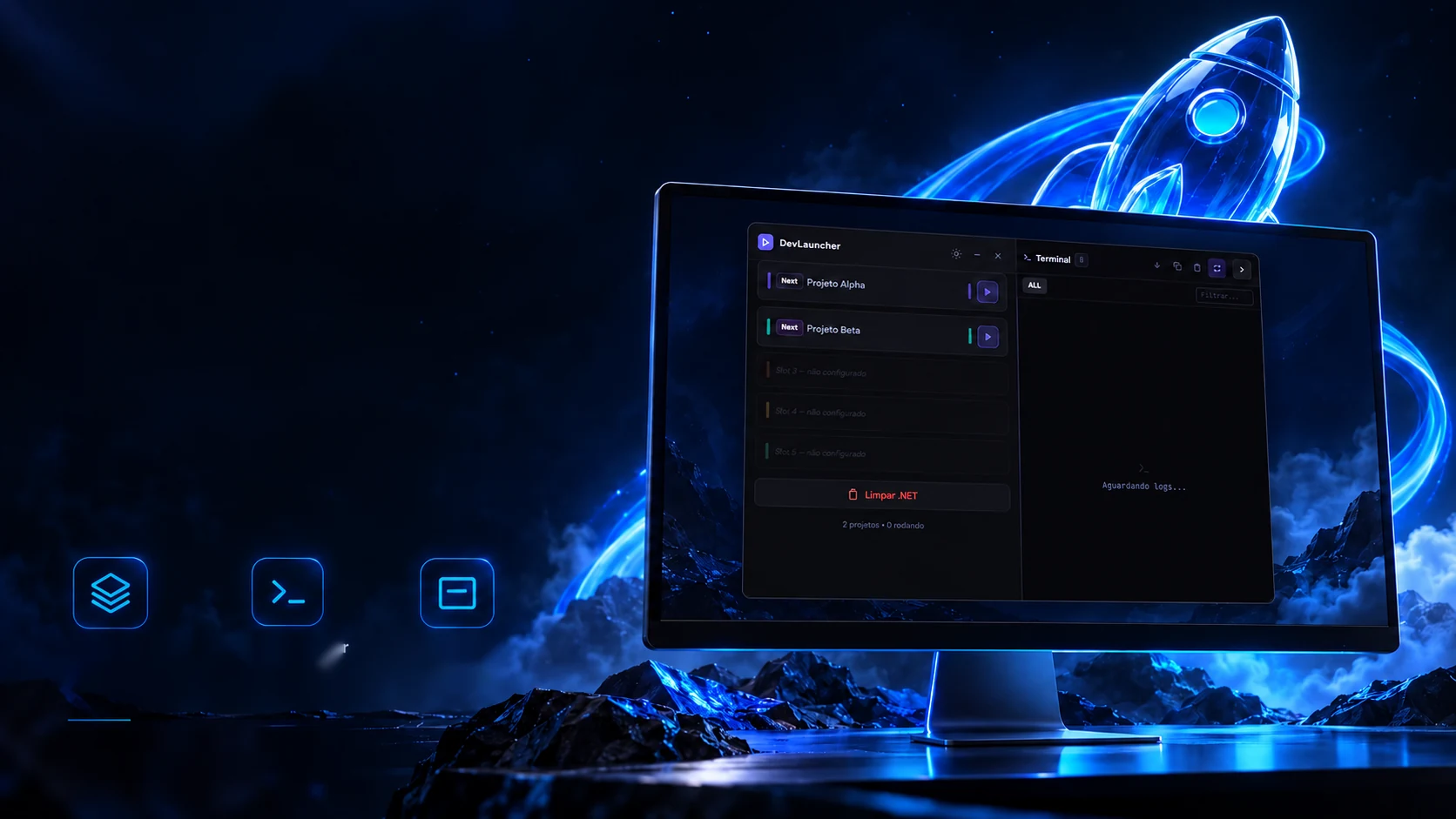
A floating panel to start local projects and follow the terminal.
- Tauri 2
- Rust
- React 18
- TypeScript
A panel that gets local projects running, with the terminal beside it.
- Tauri 2
- Rust
- React 18
- TypeScript
The reading
Point at the folder. It works out the rest.
To get a project running you usually have to remember the command and the port. Here you just pick the folder: the program opens the recipe file, recognises the technology and fills in the command and the address. Pick an example folder.
Pick a folder
What it reads
{
  "name": "loja",
  "scripts": {
    "dev": "next dev"
  },
  "dependencies": { "next": "14.0.4" }
}
What it finds
- Suggested command
npm run dev- Address
localhost:3000
Recognises 16 technologies
- Next.js
- Nuxt
- Vite
- React
- Vue
- Svelte
- Angular
- Astro
- Electron
- Tauri
- Django
- Flask
- Python
- PHP
- Go
- .NET
The folders are examples, but the reading is the code's: package.json, requirements.txt, composer.json, go.mod and .NET project files (src-tauri/src/main.rs).
The slots
Five projects, five buttons.
The panel has five fixed slots, each with its own colour. A slot keeps the name, the folder, the technology and the command; the button starts and stops the project. Start and stop them here to see.
- Next.jsProject Alpha
npm run dev - ViteProject Beta
npm run dev - not set up
- not set up
- not set up
The five slots and the five colours are from the code (src/types.ts). The names are examples, the same ones in the artwork.
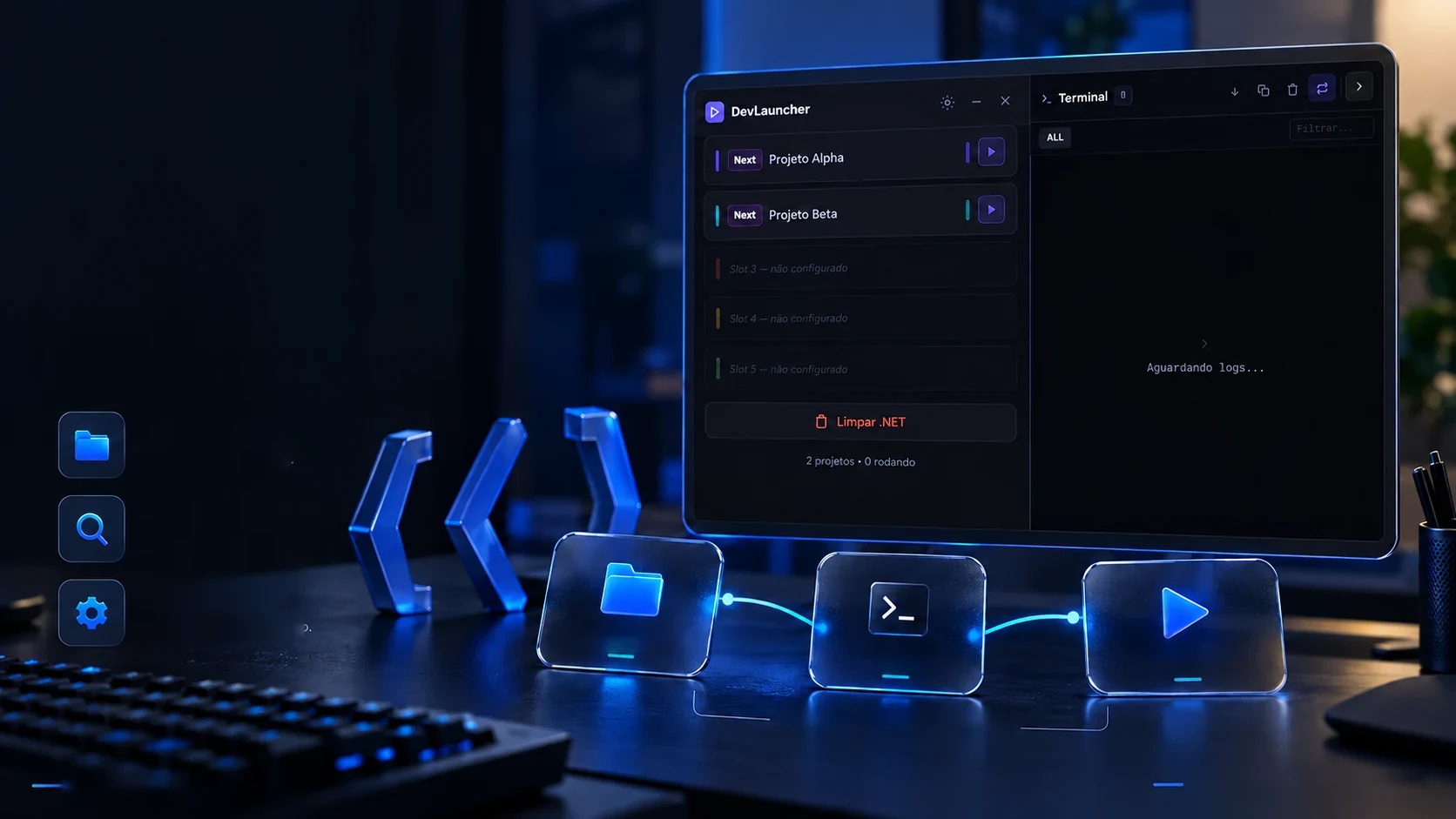
From command to result.
Run scripts and follow the output in the built-in terminal.
ProcessoutputFilters in the
terminalConfigurable
commandLocal run · Side terminal · Personal project
Everything the project writes shows up here, coloured by kind of line: the command, the normal output, the error warning, the program's own notice and, highlighted, the local address when it appears. Filter by project or by word.
CommandOutputErrorProgramAddress0 lines
The five kinds of line are the code's (src/types.ts); the address is highlighted because the program looks for it in the output to offer the open button.
An in-house tool. A more direct flow.
Folder picking, project detection and local running brought together in one panel.
Built to make my development routine easier.Native folder dialogQuick and practical picking.Technology detectionIdentifies your projectsautomatically.Local configurationEach project in its own flow.Project folderReact + TypeScript · Tauri + RustCommandLocal runConceptual view of the flowA Windows app still growing.
From the click on the folder to the page open in the browser there are four steps, and the program does all four without leaving the same window. Pick a step to see what happens there.
The button opens the Windows folder dialog. The chosen path is kept in the slot, along with the name and the command.
The four steps come from the code's functions: the dialog, the folder analysis, the child process and the address hunt (src-tauri/src/main.rs).
The clean-up
The button that doesn't go back.
.NET projects leave behind folders that take up space and are useless afterwards. The panel has a button that deletes them and says how much it freed. It is useful, and it is final, hence the warning.
- bin148.3 MB
- obj96.7 MB
- .vs41.2 MB
- .net12.5 MB
- Before you click
- The deleted folders don't go to the recycle bin: they are gone for good.
- The clean-up covers the chosen folder and the folders inside it.
- Before cleaning, close the editor and stop the project: an open file can block the removal.
The final notice and the folder list (.net, bin, obj, .vs) are the code's. Here the button only touches the on-screen example, "restore" doesn't exist in the program.
The technologies
What it is made of, piece by piece
A desktop program, not a website: the screen is React inside a frameless Tauri 2 window, and the one starting the projects, listening to their output and finding the port is Rust. Pick a piece to see what it does here and which file it is in.
11technologies, in 3 layers
Screen
Window and processes
Features
The screens
A small window, always in front.
The program doesn't take the whole screen: it is a narrow panel, with no system frame, that sits above the editor. Switch tabs to see both screens and click to see them large.
The panel idle, waiting
- 700 × 600The window size, from the configuration file.
- No frameThe top bar is drawn by the app itself.
- Always on topIt stays above the other windows while you code.
Real app screens. The project names were repainted with the example names from the artwork: the captures carried a client's name.
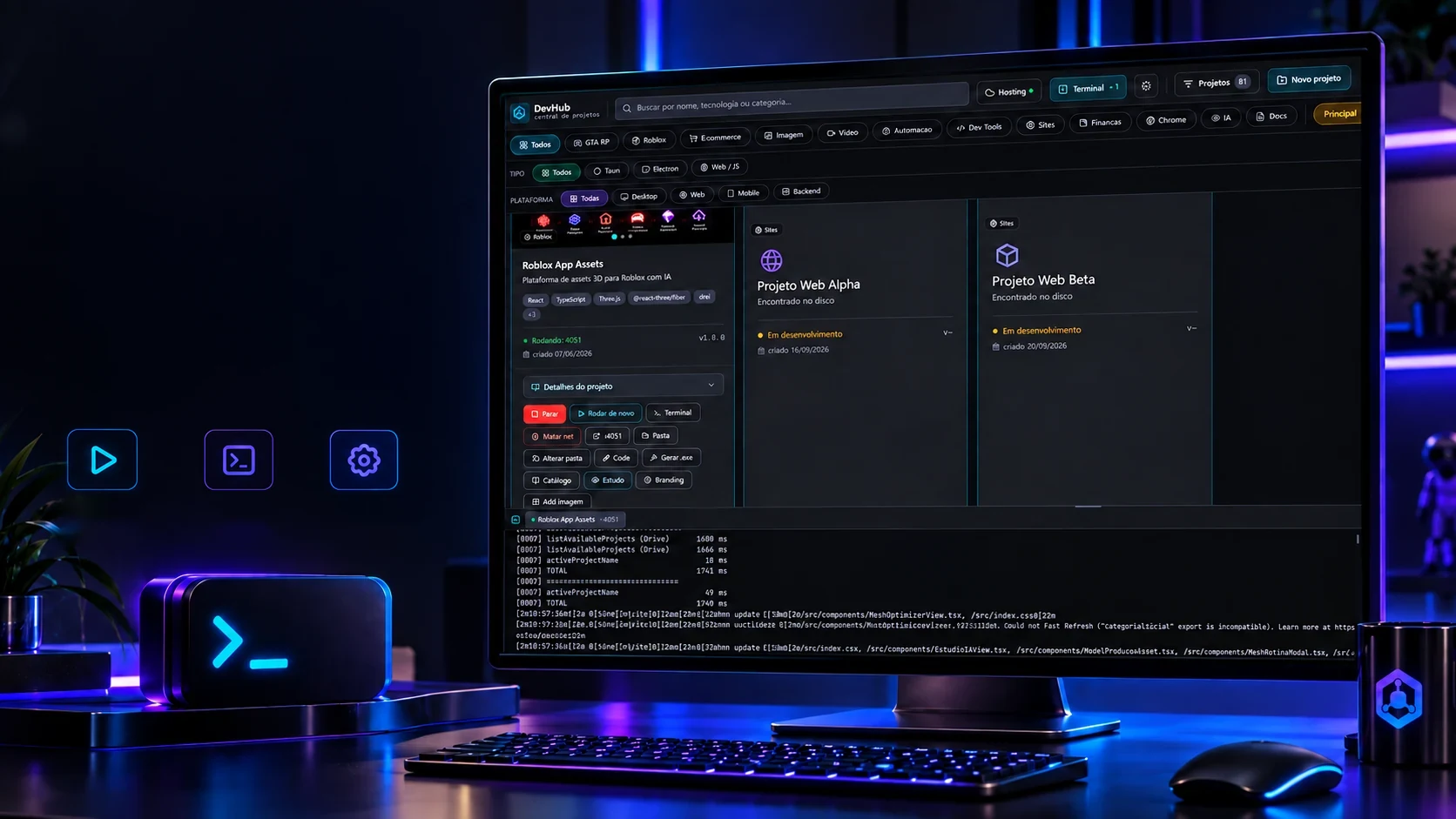
 Creative and developer toolsDevHub Central de Projetos