

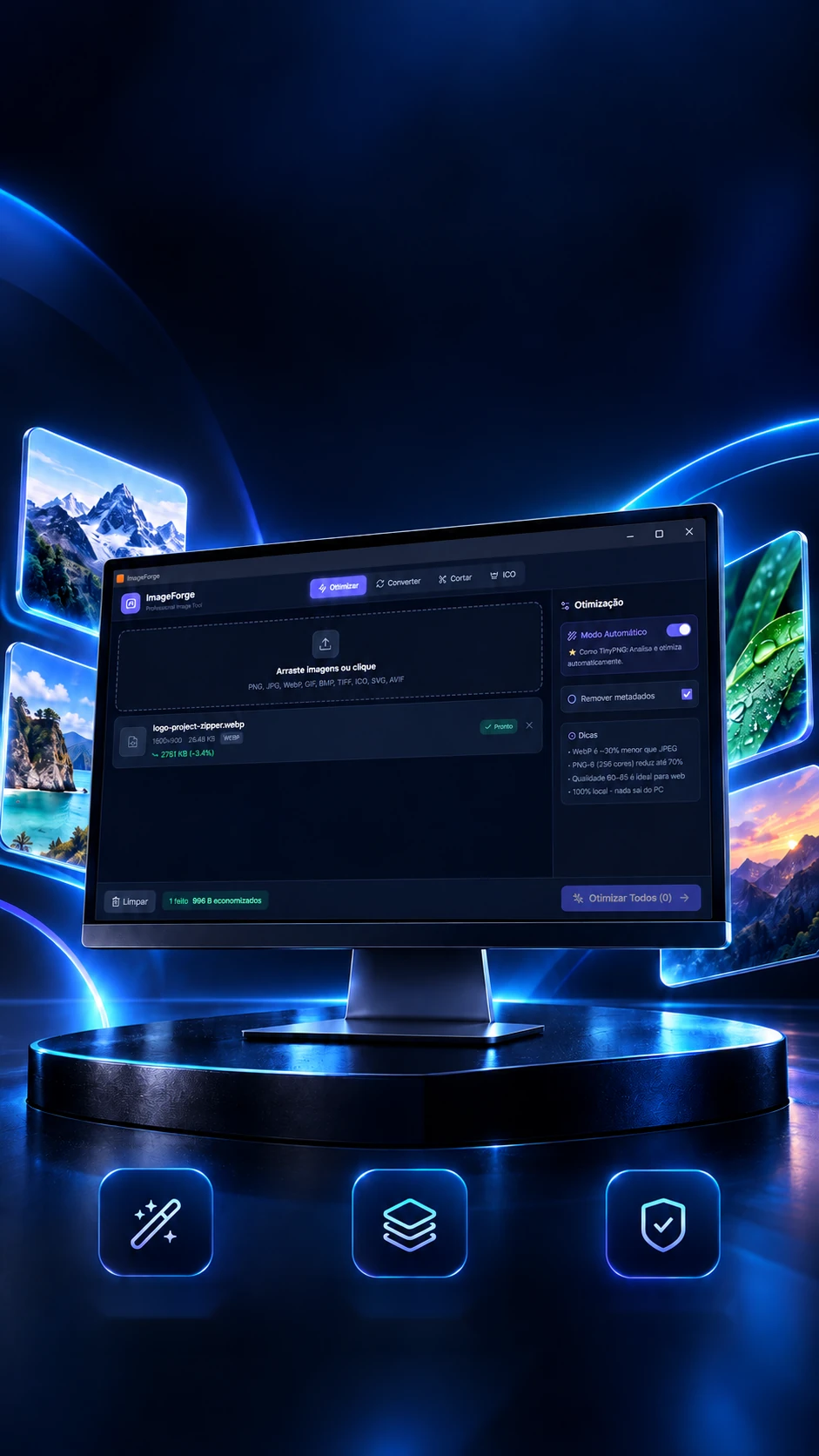
 Automatic
modeSavings
per file100% local
Your image, lighter.Your workflow, simpler.
Automatic optimization, with manual control and local processing.
Optimizes, converts, crops and makes favicons, all on the computer.
- Tauri
- Rust
- React
- ImageMagick
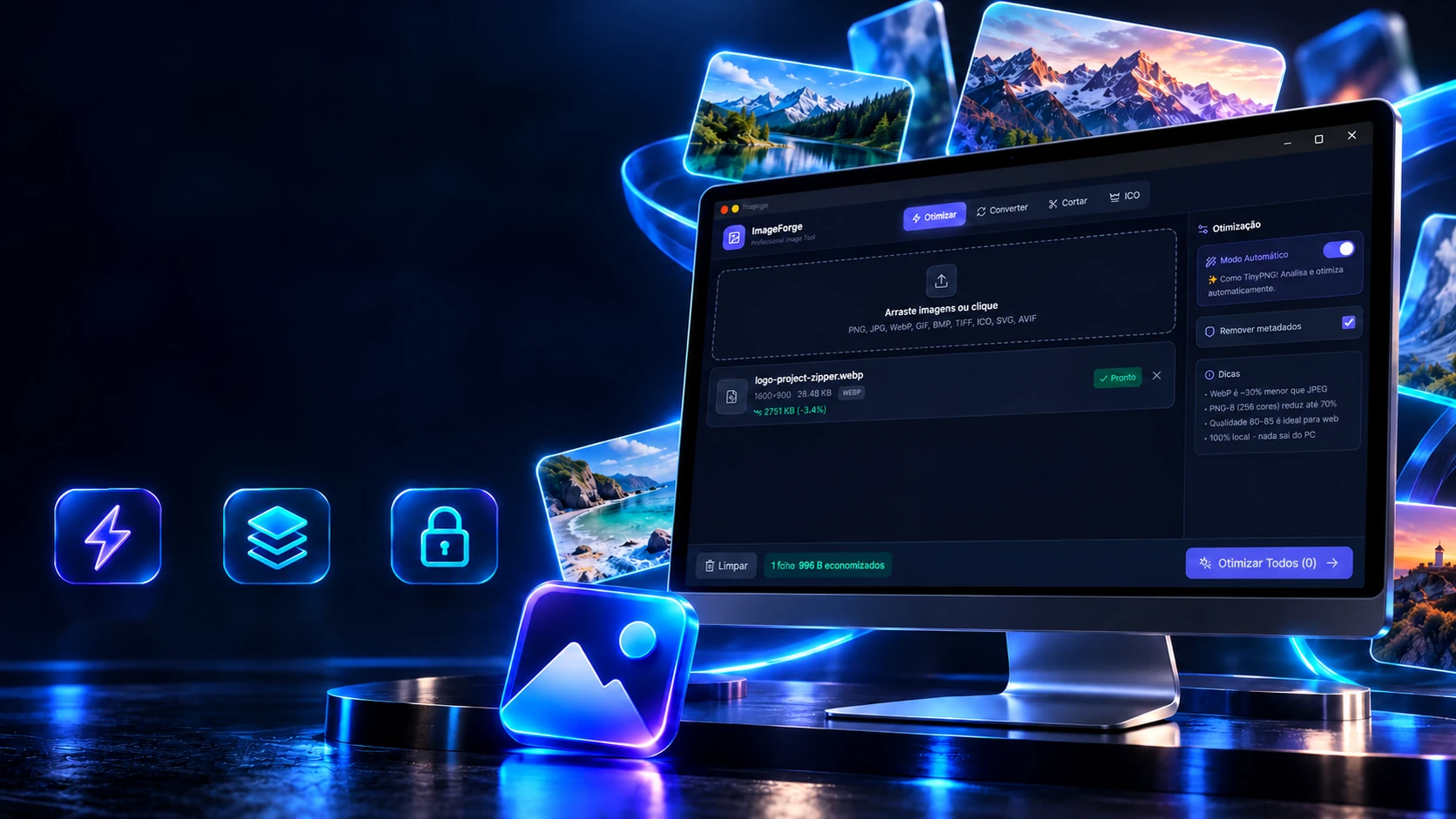 Automatic
modeSavings
per file100% local
Your image, lighter.Your workflow, simpler.
Automatic optimization, with manual control and local processing.
- Tauri
- Rust
- React
- ImageMagick
Optimizes, converts, crops and makes favicons, all on the computer.
- Tauri
- Rust
- React
- ImageMagick
Automatic mode
Five rules pick the format for you.
When on, automatic mode looks at each image's size, transparency and weight and decides the format and quality, the first rule that fits wins. Pick a sample image or change the measures and watch where it stops.
The image
The rules, in this order
- 1Up to 256×256 → PNG with 256 colors, quality 95
- 2Over 500 thousand pixels, no transparency → WebP 82
- 3Transparent, PNG and over 100 KB → PNG with 256 colors, 90
- 4Transparent → WebP 85
- 5Everything else → WebP 85
What the program picks
- Format
- PNG
- Quality
- 95
- Colors
- 256
- px
- 16.384
The ImageMagick command
magick entrada.png -strip -colors 256 -dither FloydSteinberg -define png:compression-level=9 -quality 95 saida.png
The rules are the program's (App.tsx), in order; the arguments are main.rs's: PNG gets color reduction with dithering and maximum compression; JPEG gets a white background, 4:2:0 chroma and progressive loading. Everything runs on the computer, without uploading the image.
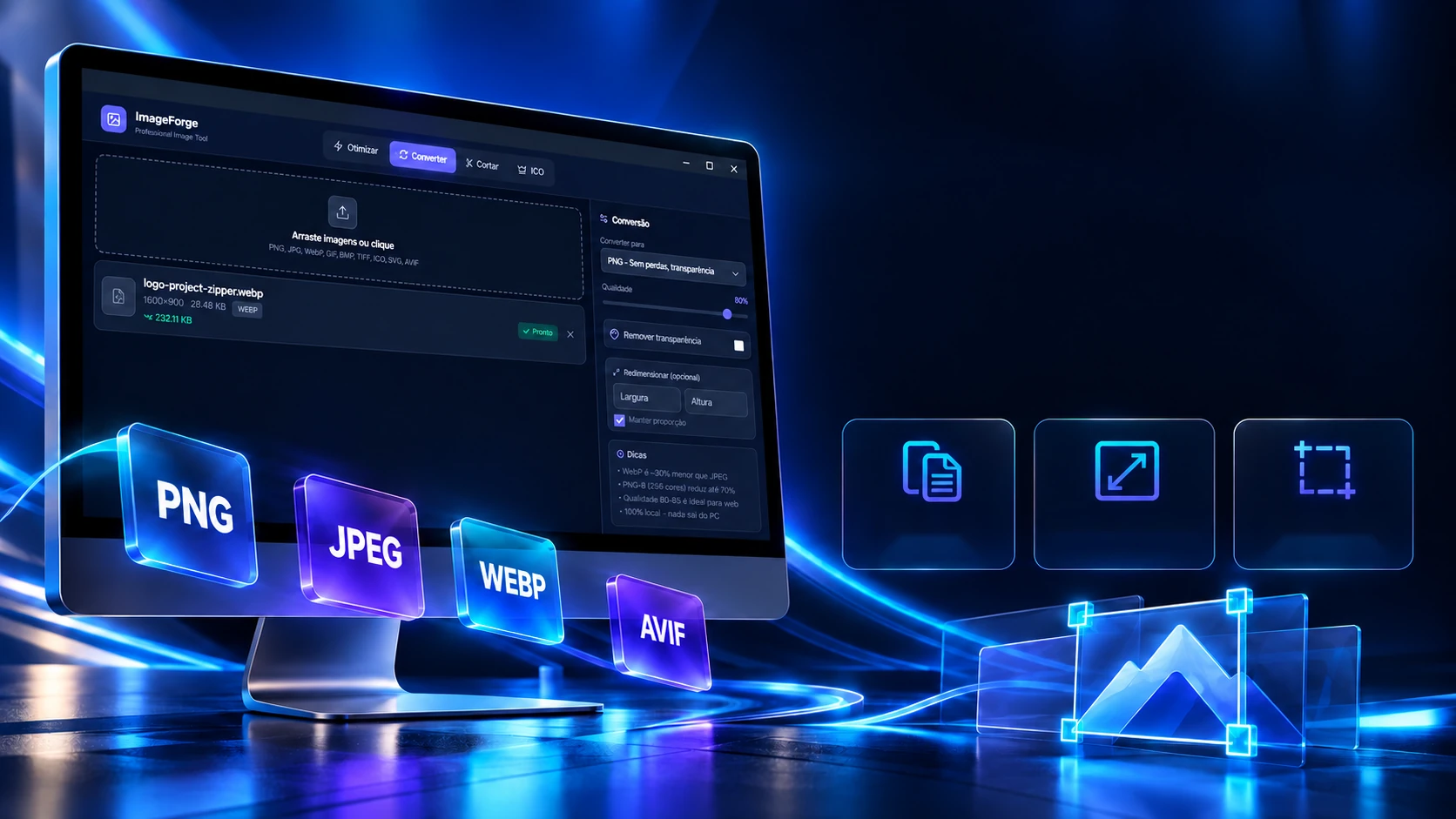
Convert. Resize. Get it ready to publish.
Format, quality and dimensions under your control.
7 outputformatsResizingCrop by
coordinates
Two tabs of the program: convert to another format, with a new size if you want, and crop an exact piece of the image. Change the measures and watch the sample image obey the way ImageMagick would.
Convert · 1600×900
Original: 1600×900Result: 800×450
The command
magick entrada.png -resize 800x800 -quality 90 entrada.png
The rules are the program's (main.rs): with width, height and aspect ratio on, the image fits in the box; without aspect ratio, it stretches; with one measure only, the other follows. Cropping uses x, y, width and height and comes out with "_cropped" in the name. The image here is a 1600×900 example.
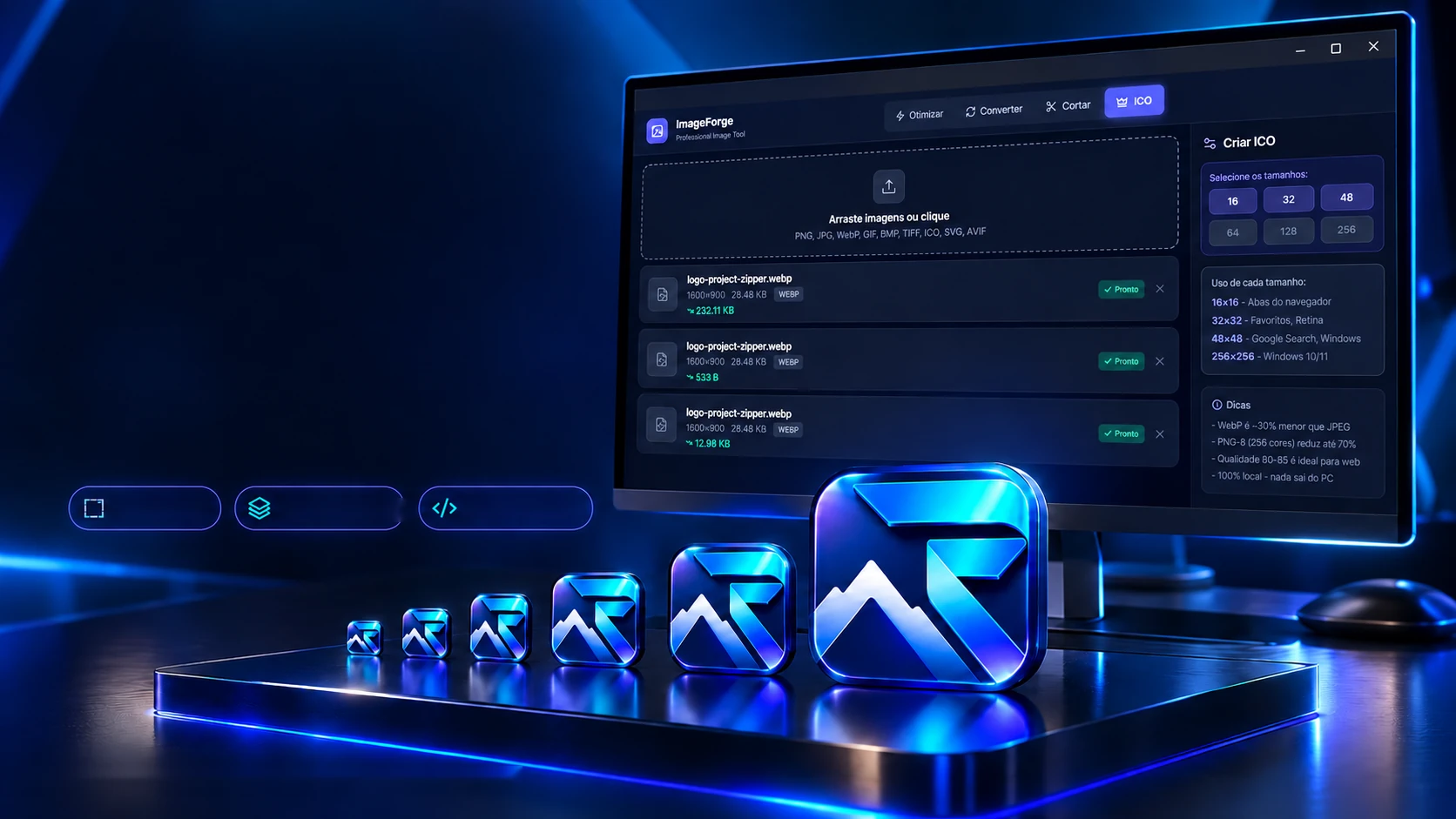
From image to favicon.
Six sizes in a single ICO, with processing done on the computer.
16 to 256 pxICO creationOriginal projectTauri · Rust · React · TypeScript · ImageMagickA favicon is a single file with several sizes inside. The program generates a PNG for each checked size and packs them into one .ico. Check the sizes, create it and watch each one drop into the file.
The source image
Sizes (px)
The file
Create ICO →
The commands
magick logo-512x512.png -resize 16x16! -background none -gravity center -extent 16x16 icon_16.png
magick logo-512x512.png -resize 32x32! -background none -gravity center -extent 32x32 icon_32.png
magick logo-512x512.png -resize 48x48! -background none -gravity center -extent 48x48 icon_48.png
magick icon_16.png icon_32.png icon_48.png favicon.ico
The real screens
The rules are the program's (main.rs): each size becomes a PNG with "-resize NxN!" (the ! forces the square), transparent background and centered; the PNGs become a single .ico and the temporary files are deleted. The default is 16, 32 and 48. Each size's use is what the screen itself shows.
The technologies
What it is made of, piece by piece
A small, direct desktop program: the React screen decides format and quality, and Rust, in 5 commands, builds the arguments and calls the ImageMagick installed on the machine. Nothing leaves the computer. Pick a piece to see what it does here and which file it is in.
7technologies, in 2 layers
Screen
Program
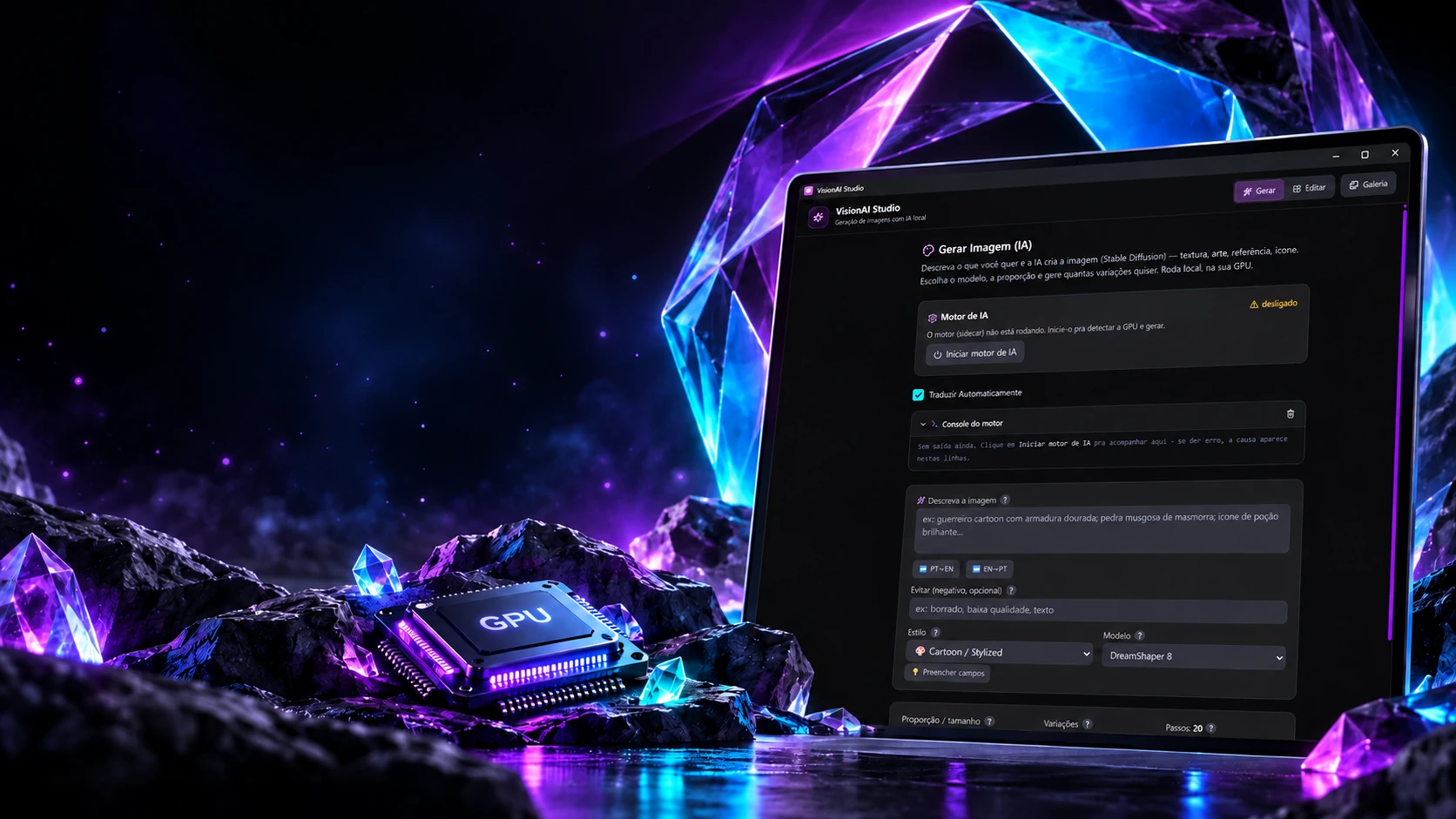
 Creative and developer toolsVisionAI Studio